

Peer-To-Peer Streaming
Peer-to-peer video streaming provides a faster, more efficient way to view live security video by establishing a direct connection between supported devices and users whenever possible. YourSixOS uses WebRTC to enable secure P2P video streaming, allowing live video to travel directly from the camera to the user instead of always passing through the YourSix cloud.
By reducing unnecessary network hops, peer-to-peer video streaming can lower latency, reduce cloud and WAN bandwidth usage, and create a more responsive live-viewing experience. YourSixOS automatically determines the most efficient connection available while maintaining the security, centralized management, and flexibility of a cloud-managed physical security platform.
Why Peer-to-Peer Video Streaming Matters
-
- Faster, more responsive live video — Direct device-to-user streaming reduces unnecessary network hops, helping deliver lower latency and a smoother real-time viewing experience.
- More efficient bandwidth usage — When a direct connection is available, video doesn’t need to travel through the YourSix cloud, reducing unnecessary cloud and WAN bandwidth consumption.
- Optimized local performance — When users and devices are on the same network, video can remain local, providing a more efficient path instead of sending the stream to the cloud and back.
The result: A faster, more bandwidth-efficient live video experience—while maintaining the flexibility and simplicity of YourSixOS cloud management.
How to Identify a P2P Connection
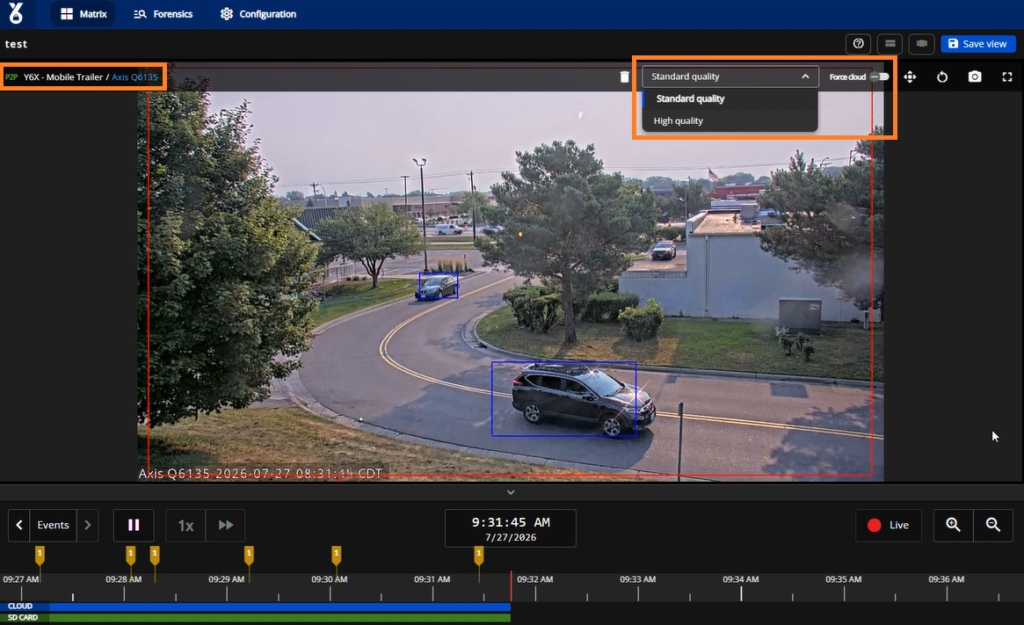
You can verify whether a stream is using a direct peer-to-peer (P2P) connection by hovering over the video tile in the player. If the connection is direct, a “P2P” indicator will appear in the upper-left corner of the video tile next to the camera and site name. If the “P2P” indicator is not displayed, the stream is being delivered through the YourSixOS cloud. If a direct P2P connection cannot be established or is interrupted, YourSixOS automatically falls back to cloud streaming to maintain uninterrupted video access.
Force Cloud Streaming
If you experience high latency or connectivity issues while using a peer-to-peer (P2P) connection, you can switch the stream to cloud communication by enabling the “Force Cloud” option.
To do this, locate the “Force Cloud” toggle in the action bar at the top of the video tile, alongside the other device actions. Enabling this option disables the direct P2P connection and routes the stream through the YourSixOS cloud. You can disable the toggle at any time to allow the platform to re-establish a direct P2P connection when available.
P2P Video Resolution and Frame Rates
When streaming over a peer-to-peer (P2P) connection, two streaming quality options are available:
- Standard (Default) – Streams at 720p, or the closest available resolution supported by the device. This option provides the best balance between image quality and bandwidth usage.
- High – Streams at 1080p, or the closest available resolution supported by the device.
For access to additional streaming resolutions, enable Force Cloud. When enabled, the live stream is routed through the YourSixOS cloud, making all available device resolutions available for selection.
When streaming via P2P, the video stream is delivered at a frame rate of 8 FPS.
P2P Streaming and Video Recordings
Live streaming via P2P does not affect video recordings. Recordings continue to be captured and stored normally.
Troubleshooting P2P Video Streaming
If a Peer-to-Peer (P2P) connection cannot be established, YourSixOS can fall back to cloud streaming so users can continue viewing live video. If you expect P2P streaming but are not seeing a direct connection, use the following steps to identify common network or configuration issues.
- Confirm P2P Status: Check the live video tile for the P2P indicator. If P2P is not displayed, the stream may be using the cloud streaming path instead.
- Verify P2P Is Enabled: Confirm that the live video tile has not been configured to force cloud streaming. If Force Cloud is enabled, YourSixOS will intentionally bypass the P2P connection.
- Check Network Connectivity: P2P relies on WebRTC to establish a direct connection between the user and device. Firewalls, VLAN configurations, restrictive network policies, or blocked UDP traffic can prevent WebRTC from establishing the direct connection. (Network Dataflows Information)
- Review Firewall and Network Rules: Confirm that the network allows the traffic required for YourSixOS and WebRTC communication. Pay particular attention to outbound UDP traffic and communication between VLANs or subnets when the user and device are on different networks. (Network Dataflows Information)
- Check Local Network Segmentation: If the user and device are at the same location but on separate VLANs, confirm that the network permits the required communication between those networks. Network segmentation may prevent a direct connection even though both devices have internet access.
- Test from Another Network: Try accessing the same camera from another network or connection. For example, switching from the corporate network to another internet connection can help determine whether a firewall or network policy is preventing P2P connectivity.
- Confirm the Device Is Online and Healthy: Verify that the device is connected to YourSixOS and reporting normally. Resolve any device connectivity or health issues before troubleshooting P2P independently.
- Contact YourSix Support: If P2P still cannot be established after verifying the network configuration, contact YourSix Support. Providing the affected device, site, network configuration, and whether cloud streaming continues to work can help accelerate troubleshooting.